

Installation
Install using go install
To install Axiom CLI, make sure you have Go version 1.16 or higher, then run this command from any directory in your terminal.Install using Homebrew
You can also install the CLI using Homebrewaxiom commands from any directory.
To update:
Install from source
Run the Docker image
Docker images are available on DockerHub.Authentication
The easiest way to start using Axiom CLI is by logging in through the command line. Simply runaxiom auth login or simply axiom if no prior configuration exists. This will guide you through a straightforward login process.
Managing multiple organizations
While most users will only need to manage a single Axiom deployment, Axiom CLI provides the capability to switch between multiple organizations for those who require it. You can easily switch between organizations using straightforward CLI commands. For example,axiom auth switch-org lets you change your active organization, or you can set the AXIOM_ORG_ID environment variable for the same purpose.
Every setting in Axiom CLI can be overwritten via environment variables configured in the ~/.axiom.toml file. Specifically, AXIOM_URL, AXIOM_TOKEN, and AXIOM_ORG_ID are important for configuring your environment. The AXIOM_URL should be set to https://api.axiom.co. You can switch between environments using the axiom auth select command.
To view available environment variables, run axiom help environment for an up to date list of env vars:
One-Click Login
The One-Click Login is an easier way to authenticate Axiom-CLI and log in to your Axiom deployments and account resources directly on your terminal using the Axiom CLI.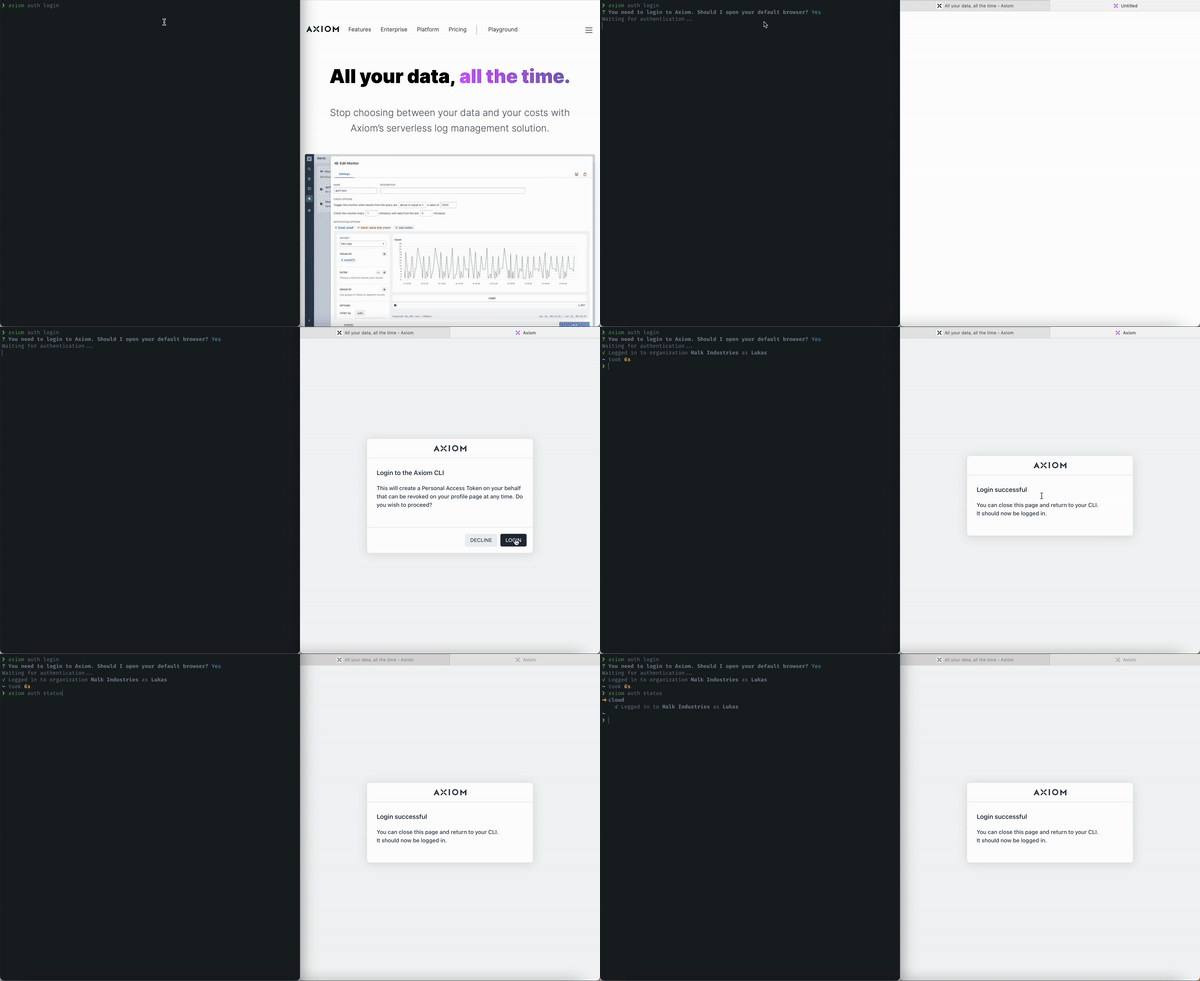
Field list
Tokens
You can generate an ingest and personal token manually in your Axiom user settings. See Tokens to know more about managing access and authorization.Configuration and Deployment
Axiom CLI lets you ingest, authenticate, and stream data. For more information about Configuration, managing authentication status, ingesting, streaming, and more, visit the Axiom CLI repository on GitHub. Axiom CLI supports the ingestion of different formats of data ( JSON, NDJSON, and CSV)Querying
Get deeper insights into your data using Axiom Processing LanguageIngestion
Import, transfer, load and process data for later use or storage using the Axiom CLI. With Axiom CLI you can Ingest the contents of a JSON, NDJSON, CSV logfile into a dataset. To view a list of all the available commands runaxiom on your terminal:
Command Reference
Below are the commonly used commands on Axiom CLI Core Commands
Management Commands
Additional Commands
Get help
To get usage tips and learn more about available commands from within Axiom CLI, run the following:help with the name of the command.