

Access Overview
Role-Based Access Control (RBAC) enables organizations to manage and restrict access to their data and resources efficiently. You can find and configure RBAC settings in the Access section located within the settings page in Axiom. The Access section consists of the following components:- API tokens
- Groups
- Roles
- Users
API tokens
You can use the Axiom API and CLI to programmatically ingest data and manage your organisation settings. For example, you can add new notifiers and change existing monitors with API requests. To prove that these requests come from you, you must include forms of authentication called tokens in your API requests. One form of authentication is an API token. API tokens let you control the actions that can be performed with the token. For example, you can specify that requests authenticated with a certain API token can only query data from a particular dataset. For more information, see Tokens.Roles
Roles are sets of capabilities that define which actions a user can perform at both the organization and dataset levels.Default roles
Axiom provides a set of default roles for all organizations:- Owner: Assigns all capabilities across the entire Axiom platform.
- Admin: Assigns administrative capabilities but not Billing capabilities, which are reserved for Owners.
- User: Assigns standard access for regular users.
- Read-only: Assigns read capabilities for datasets, plus read access on various resources like dashboards, monitors, notifiers, users, queries, starred queries, and virtual fields.
- None: Assigns zero capabilities, useful for adopting the principle of least privilege when inviting new users. Users with this default role can have specific capabilities built up through Roles assigned to a Group.
Prerequisites for creating roles
Custom roles can be created in Axiom organizations on the Enterprise plan. Users must have the create permission for the access control capability assigned in order to create custom roles, which is enabled for the default Owner and Admin roles.Creating a custom role
- Navigate to Roles and select New role.
- Enter the name and description of the role.
- Assign capabilities: Roles can be assigned various permissions (create, read, update, and delete) across capabilities like Access control, API tokens, dashboards, and datasets.
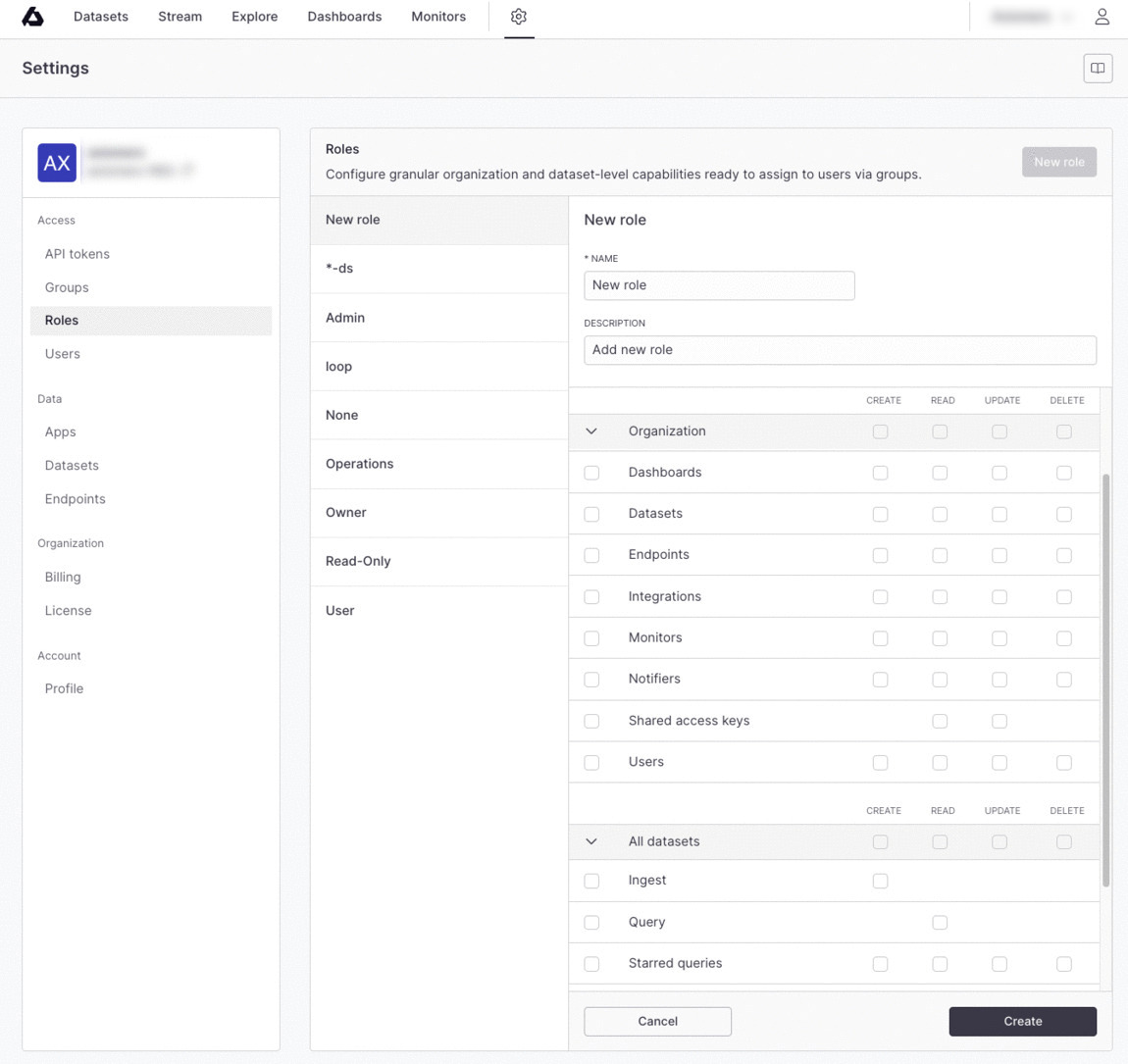
Create a custom role
Assigning capabilities to roles
Role creation is split into organization-level and dataset-level capabilities. Each capability has options to assign create, read, update, or delete (CRUD) permissions. Organization-level capabilities define access for various parts of an Axiom organization.- Access control: Full CRUD.
- API tokens: Full CRUD.
- Apps: Full CRUD.
- Billing: Read and update only.
- Dashboards: Full CRUD.
- Datasets: Full CRUD.
- Endpoints: Full CRUD.
- Monitors: Full CRUD.
- Notifiers: Full CRUD.
- Shared Access Key: Read and update only.
- Users: Full CRUD.
Dataset-level capabilities provide fine-grained control over access to datasets. For flexibility, the following capabilities can be assigned for all datasets, or individual datasets.
- Ingest: Create only.
- Query: Read only.
- Starred queries: Full CRUD.
- Virtual fields: Full CRUD.
Access to datasets
The datasets that individual users have access to determine the following:- The data they see in dashboards. If a user has access to a dashboard but only to some of the datasets referenced in the dashboard’s elements, the user only sees data from the datasets they have access to.
- The monitors they see. A user only sees the monitors that reference the datasets that the user has access to. If a user has access to the monitors of an organization but only to some of the datasets referenced in the monitors, the user only sees the monitors that reference the datasets they have access to. If a monitor joins several datasets, a user can only see the monitor if the user has access to all of the datasets.
Groups
Groups, which are available to Axiom organizations on the Enterprise plan, connect users with roles, making it easier to manage access control at scale. Organizations might create groups for areas of their business like Security, Infrastructure, or Business Analytics, with specific roles assigned to serve the unique needs of these domains. Since groups connect users with one or many roles, users’ complete set of capabilities are derived from the additive union of their base role, plus any roles assigned through group membership.Creating a New Group
- Navigate to Groups and select New group.
- Enter the name and description of the group.
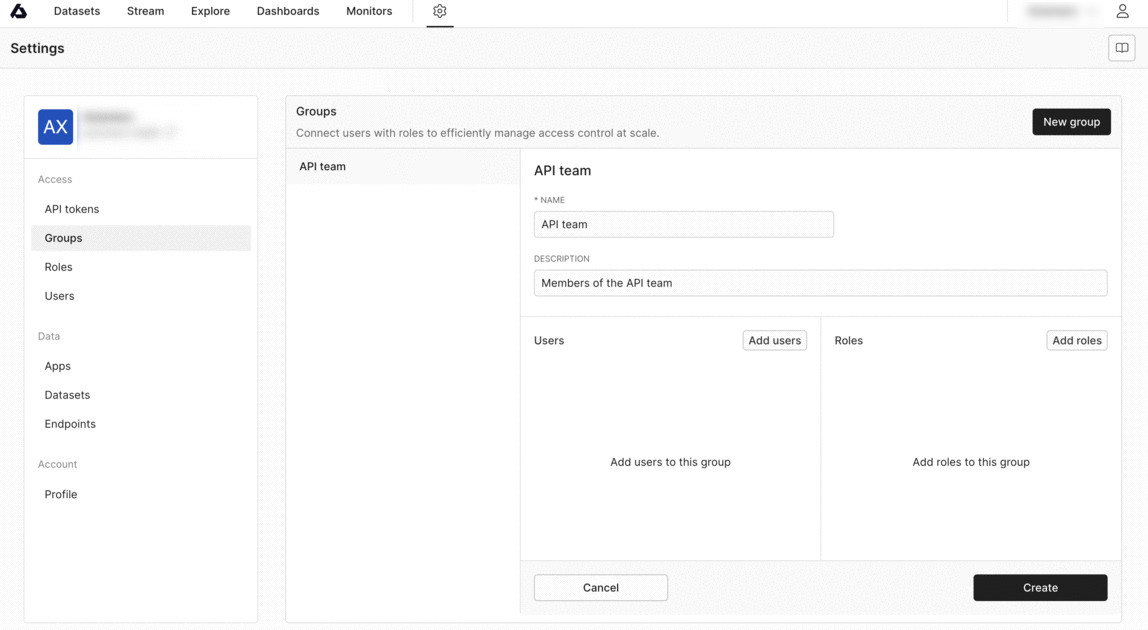
Create a group
- Add users to the group. Clicking on Add users will display a list of available users.
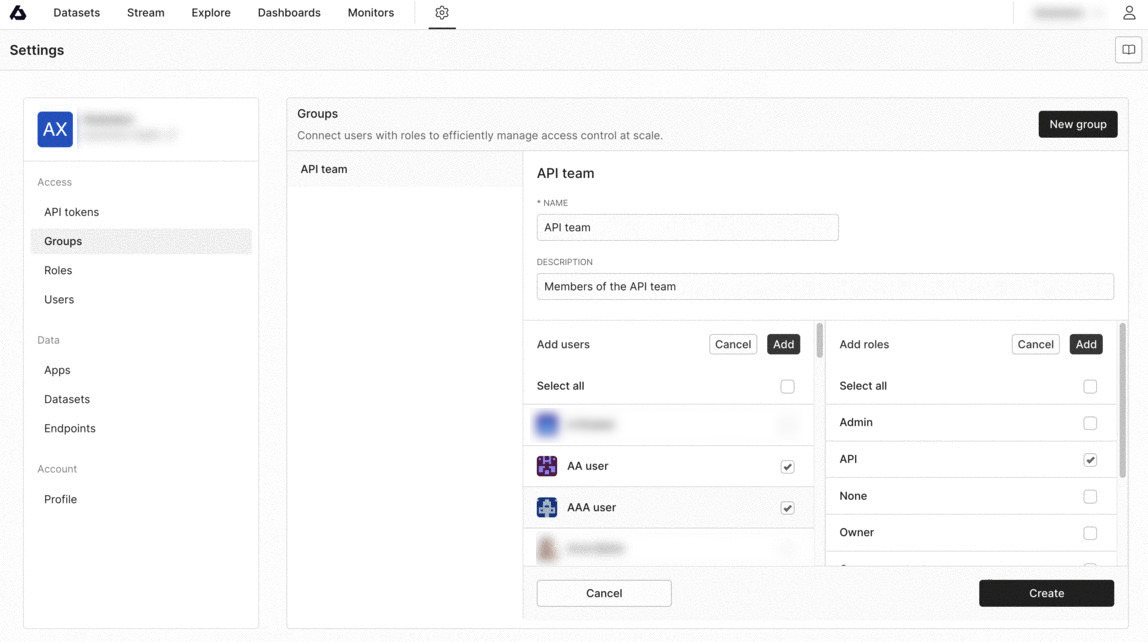
Create a group with users
- Add roles to the group by clicking Add roles, which will present a list of available roles.
Users
Users in Axiom are the individual accounts that have access to an organization. Users are assigned a base role when joining an organization, which is configured during the invite step. For organizations on an Enterprise plan, additional roles can be added through Group membership.Managing Users
- Navigate to Settings and select Users.
- Review and manage the list of users and assign default or custom base roles as desired.
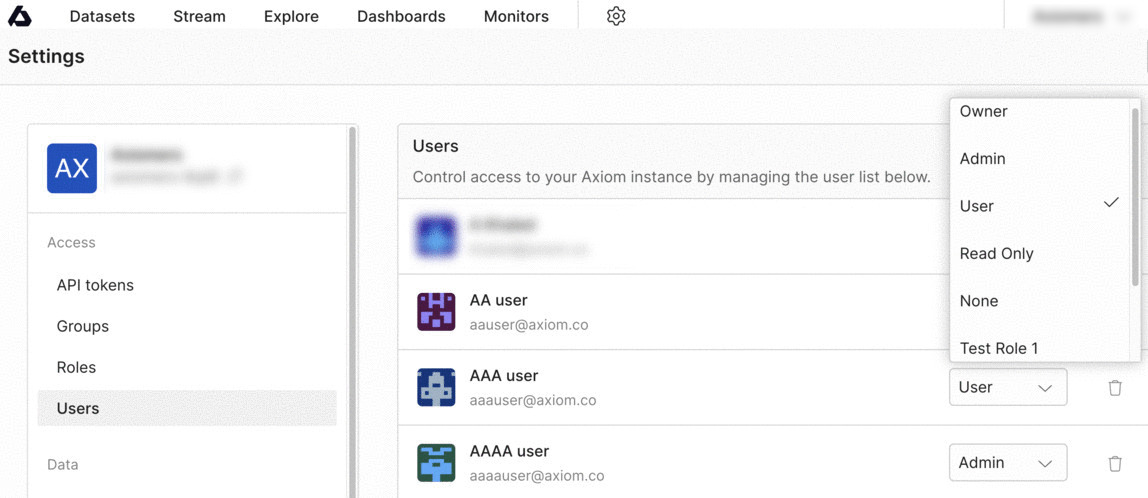
Create a group
Data
Apps
Enrich your Axiom organization with a catalog of migrations tools, and dedicated apps, and gain complete visibility into any platform, and get alerts on your errors to stay ahead of issues. By properly monitoring your apps with Axiom, you can spot slowdowns, hiccups, bad requests, errored requests, and function cache performance and know which actions to take to correct these issues before there are user-facing consequences. Check out supported Apps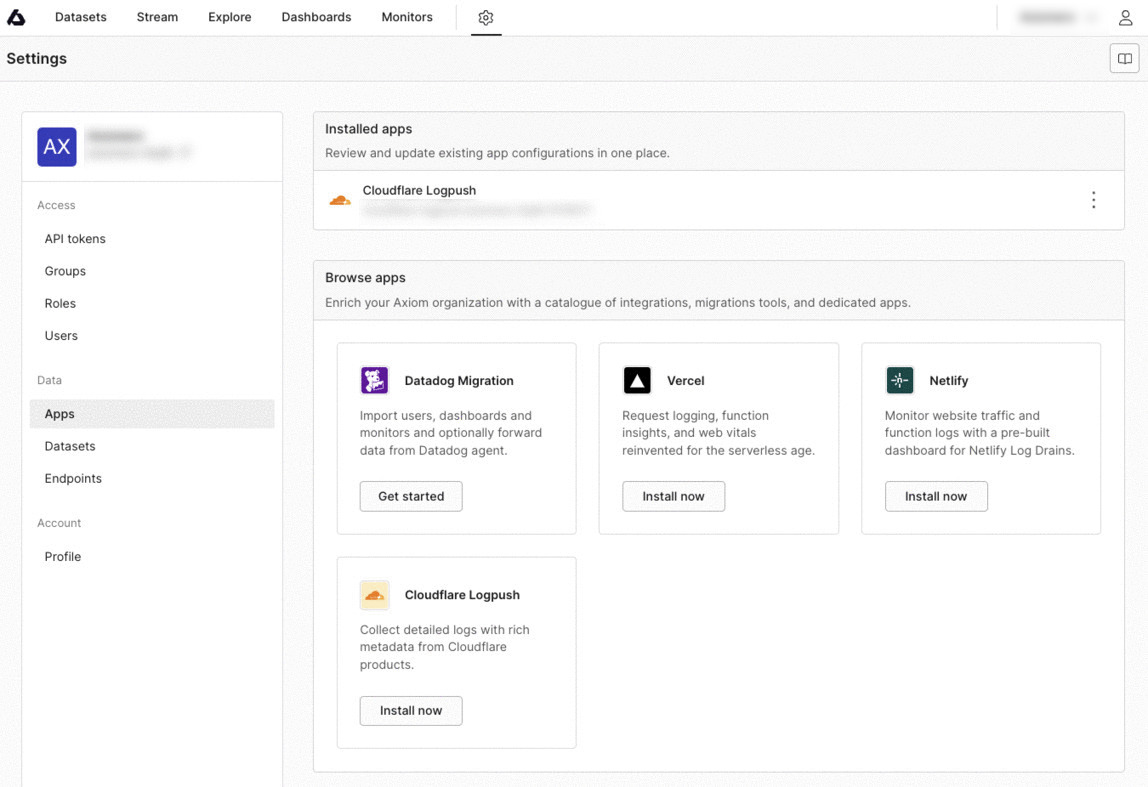
Apps overview
Dataset
Manage datasets for your organization, including creating new datasets or deleting existing datasets. Datasets are a collection of similar events. When data is sent to Axiom it is stored in a dataset. Dataset names must be between 1-128 characters, and may only contain ASCII alphanumeric characters and the ’-’ character. To create a dataset, enter the name and description of your dataset.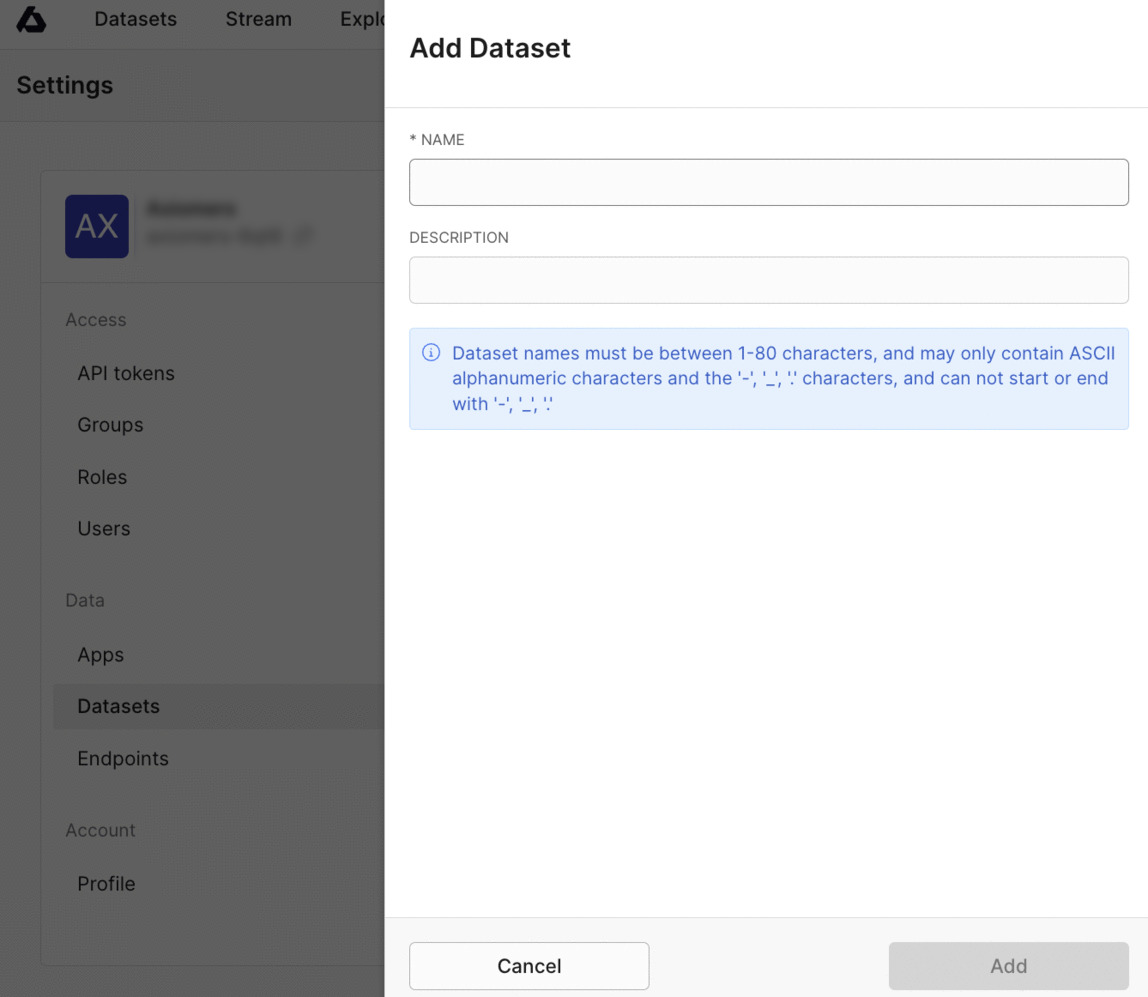
Auth overview
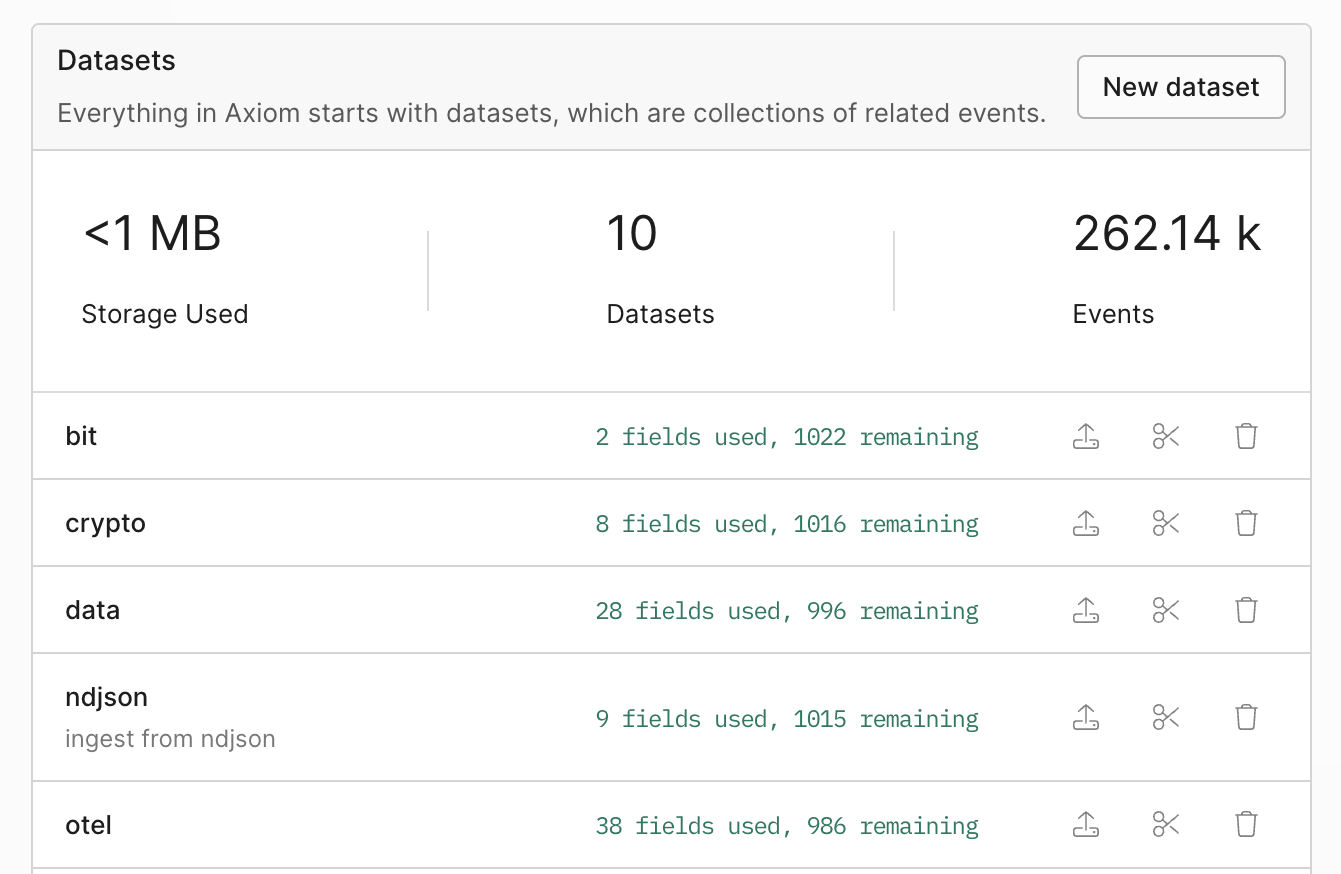
Datasets Auth overview
Endpoints
Endpoints allow you to easily integrate Axiom into your existing data flow using tools and libraries that you already know. With Endpoints, you can build and configure your existing tooling to send data to Axiom so you can start monitoring your logs immediately.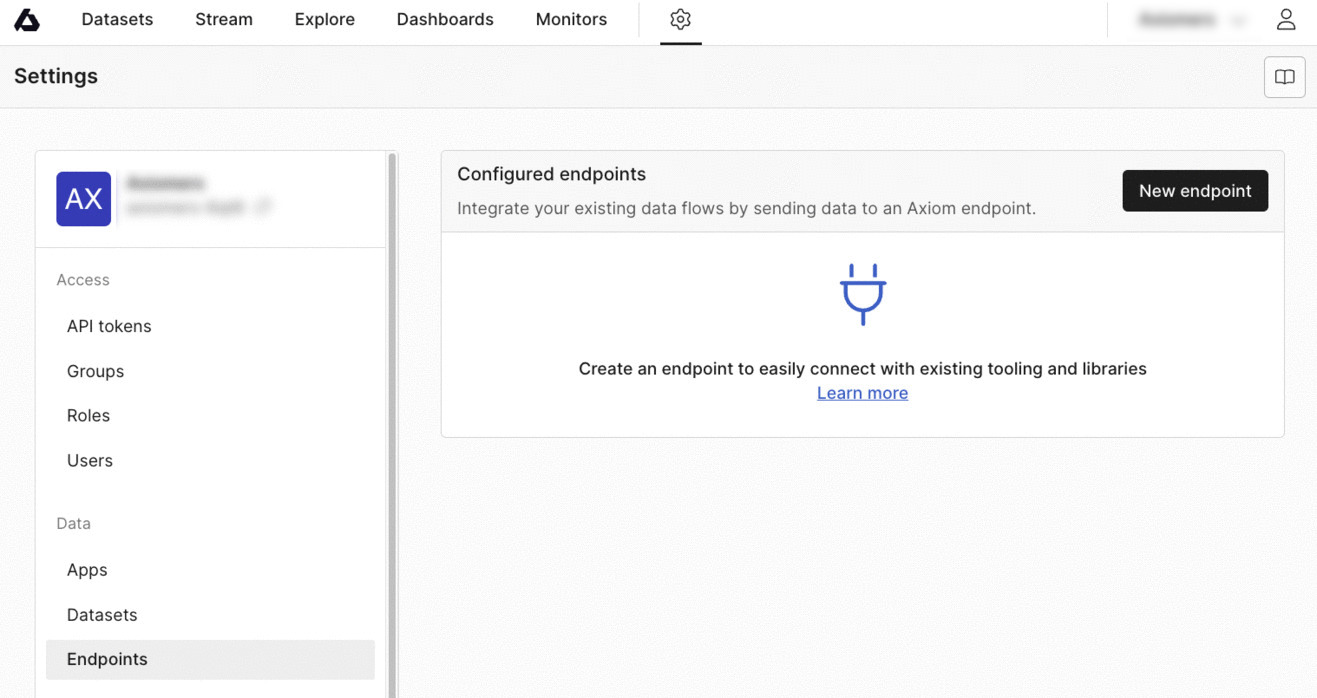
Endpoints
Organization
Billing
Manage your project billing, view your current plan, and explore the total usage of each component during your current billing period up to the last hour. You can upgrade your organization to a free 14-day trial. Axiom will not charge you during the first 14 days of your Axiom Pro trial. You can cancel at any time during the trial period without incurring any cost. At the end of the trial period, your account will automatically convert to a paid plan. On the Billings dashboard you can get the total usage of each running component during the current billing period up to the last hour and beyond.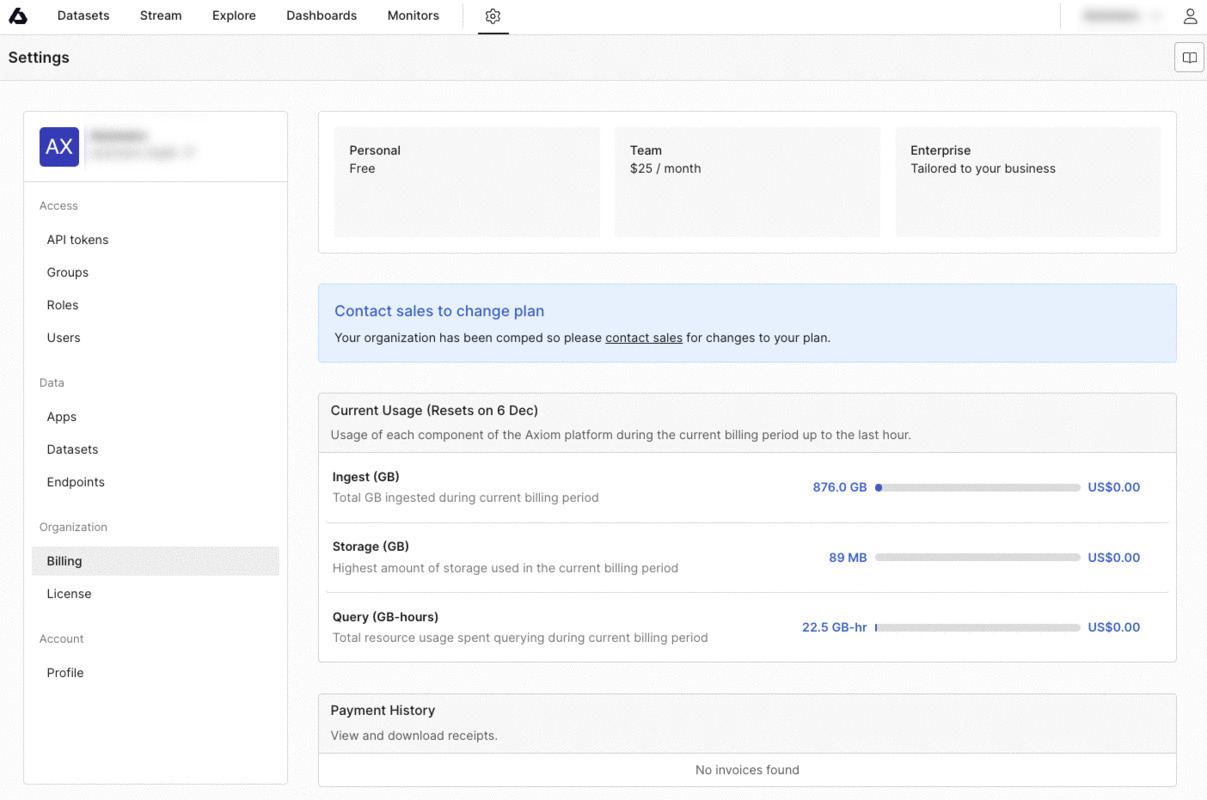
Billing
License
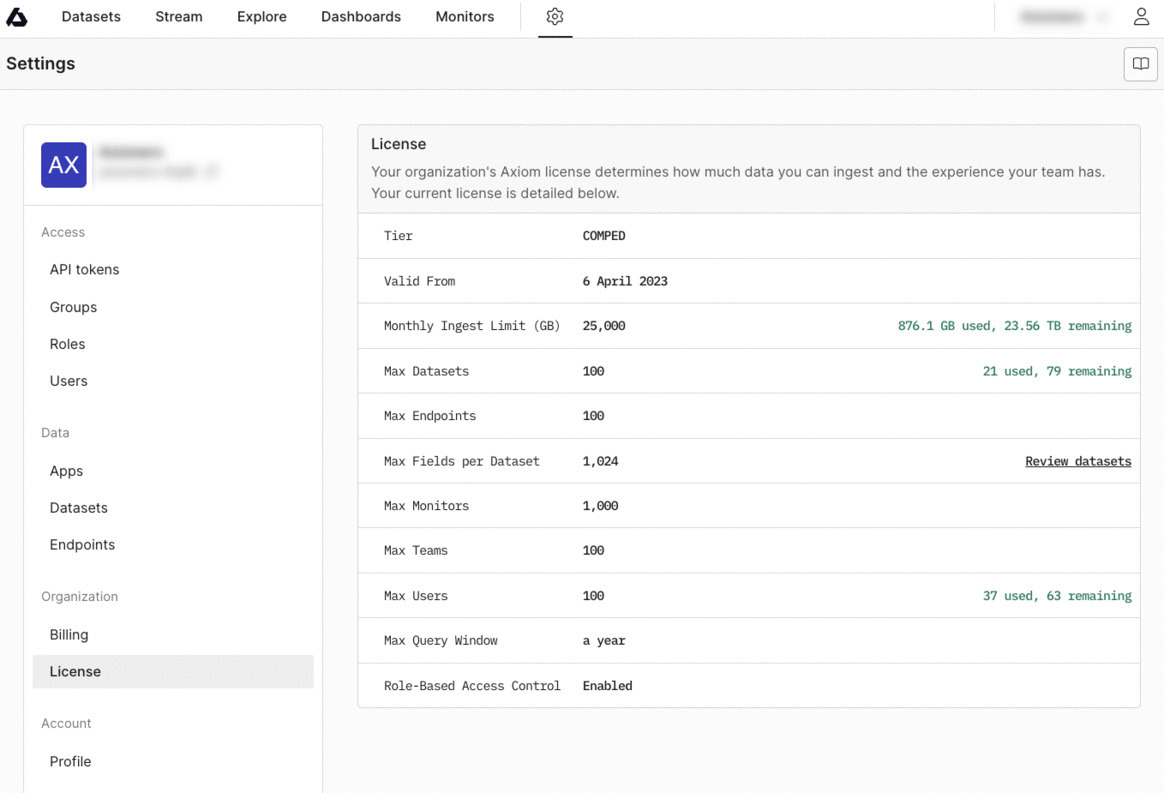
You can see the license and configurations for your organization by selecting License this lets you know:- How much data you can ingest.
- Monthly ingest limit (GB).
- Maximum endpoints.
- Maximum datasets you can have.
- Maximum fields per dataset.
- Maximum monitors.
- Maximum number of Users.
- Maximum number of Teams.
- Maximum query window.
Auth overview
Profile
In the Profile section, you can configure the following:- Change your name.
- View your contact details and role.
- Change your timezone.
- Change the editor mode.
- Select the default method for null values. When you run a query with a visualization, you can select how Axiom treats null values in the chart options. For more information, see Configure chart options. When you select a default method to deal with null values, Axiom uses this method in every new chart you create.
- View and manage your active sessions.
- Create and delete personal access tokens. For more information, see Personal access tokens.
- Delete your account.